Free macOS Window Mockup Generator: Frame the app, not the whole desktop.
Turn a raw window capture into a finished product image. The free scene sets a macOS window with a title bar on a dotted ground; add your screenshot, set the background, and export for a website, a changelog or the Mac App Store.
Make a macOS window mockupNo sign-up. No watermark. Made for desktop browsers.
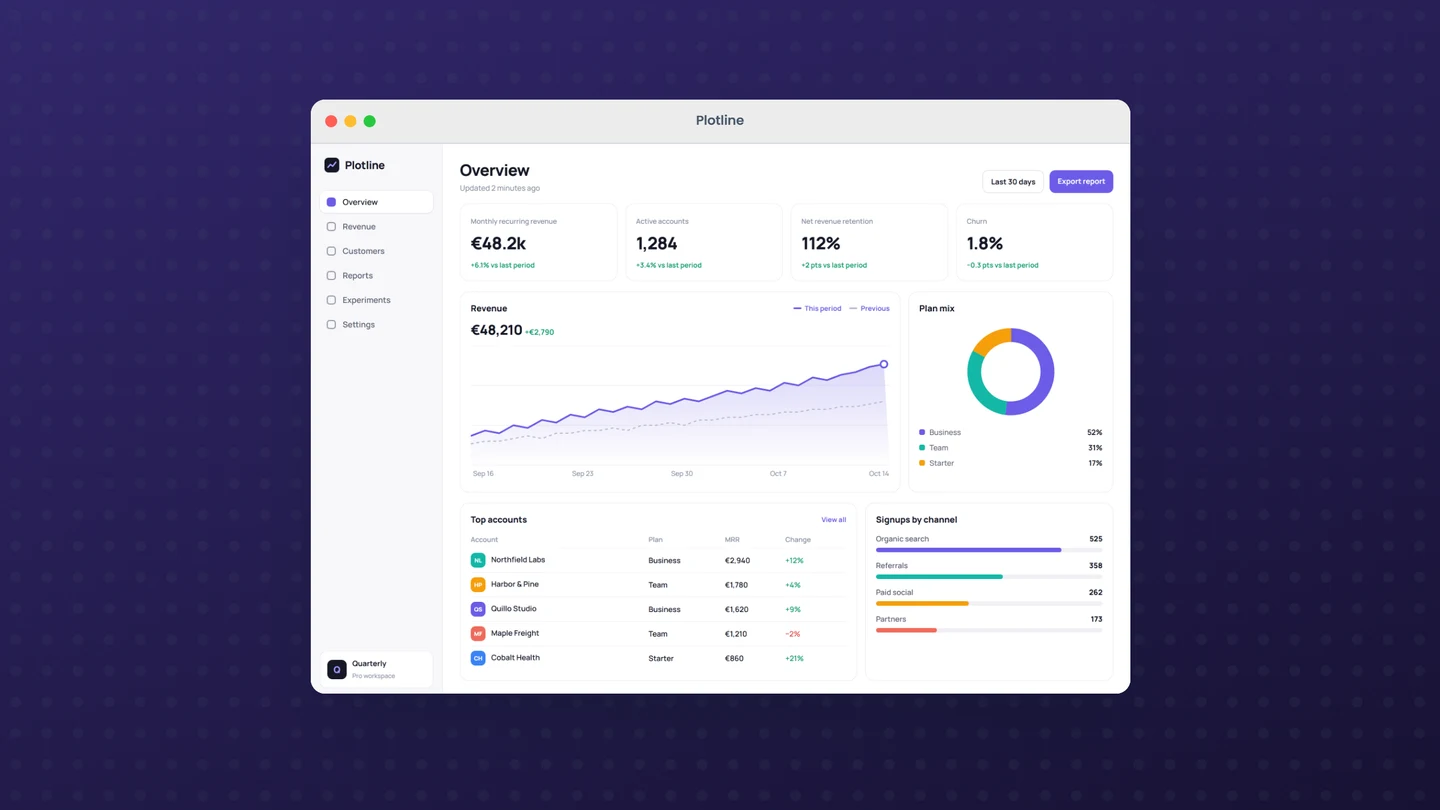
How to make macOS window mockups.
- 01
Capture the app's content
Take a screenshot of the content of your app's window. The frame draws its own title bar and window buttons, so a capture that already includes them shows them twice. Open the macOS window scene and replace the sample.
- 02
Set the window and its ground
Choose a light or dark window, set the padding and corner rounding, and keep or drop the shadow. The title in the bar is editable text. Change the background colour or pattern (grid, dots or blobs), or use a gradient that picks up a colour from your interface.
- 03
Export for the page or the store
Download a PNG or JPEG free up to 3,000 px on the long side. For a Mac App Store screenshot, set the canvas to the Mac preset, 2880 × 1800. To place the window on your own page, export a PNG with a transparent background, which needs Pro.
One window, cropped to the point
A full-desktop screenshot makes the reader find the product. A single window on a quiet ground does that work for them. Size the window so interface text is readable at the width your page will show it, and leave even space around it. For a release note, crop the screenshot to the panel that changed. When the product also runs in a browser, the website mockup gives it a browser frame; for the hardware around it, use the MacBook mockup.
What is included for free?
Every device frame and starter scene, plus one free scene from each premium collection, custom canvas dimensions, local saving, and PNG or JPEG export up to 3,000 px on the long side, with no watermark or account. Pro adds larger exports up to 4×, WebP, transparent backgrounds, the premium collections, size batches, and optional cloud sync.
Compare Free and ProRead next
- Brayer vs Shots: Choosing a Mockup ToolCompare Brayer and Shots for screenshot mockups, launch graphics and animated content: a practical example, workflow differences and clear plan limits.
- Brayer vs Rotato: Mockups and Motion ComparedCompare Brayer's browser mockups and short videos with Rotato's 3D animation workflow, purchase model and device tools. Includes an editable Brayer example.
- Connect AI: Design with Claude or ChatGPT via MCPAdd Brayer's MCP connector to Claude, ChatGPT, Claude Code or Cursor, turn on Connect AI in the studio, and let your AI app build mockups in your open tab.
GOOD TO KNOW
Before you create.
Does the frame include the title bar and window buttons?
Yes. The macOS window frame draws the three window buttons and a centred title, which you can edit. Use a screenshot of the content only, without your app's own title bar.
Can I make Mac App Store screenshots?
Yes. The export dialog has Apple's Mac size, 2880 × 1800, and it exports free. Apple accepts several Mac sizes; check App Store Connect for the current list before you submit.
Is there a Windows or Linux window frame?
No. The window frames are macOS and three browser styles: Chrome, Safari and a minimal bar. A Windows title bar is not included.
Can I show a dark-mode app?
Yes. Switch the window to its dark theme so the title bar matches a dark interface, then pick a ground that keeps the window's edge visible.
Find your next mockup.
Starting points for product launches, portfolios and client work.
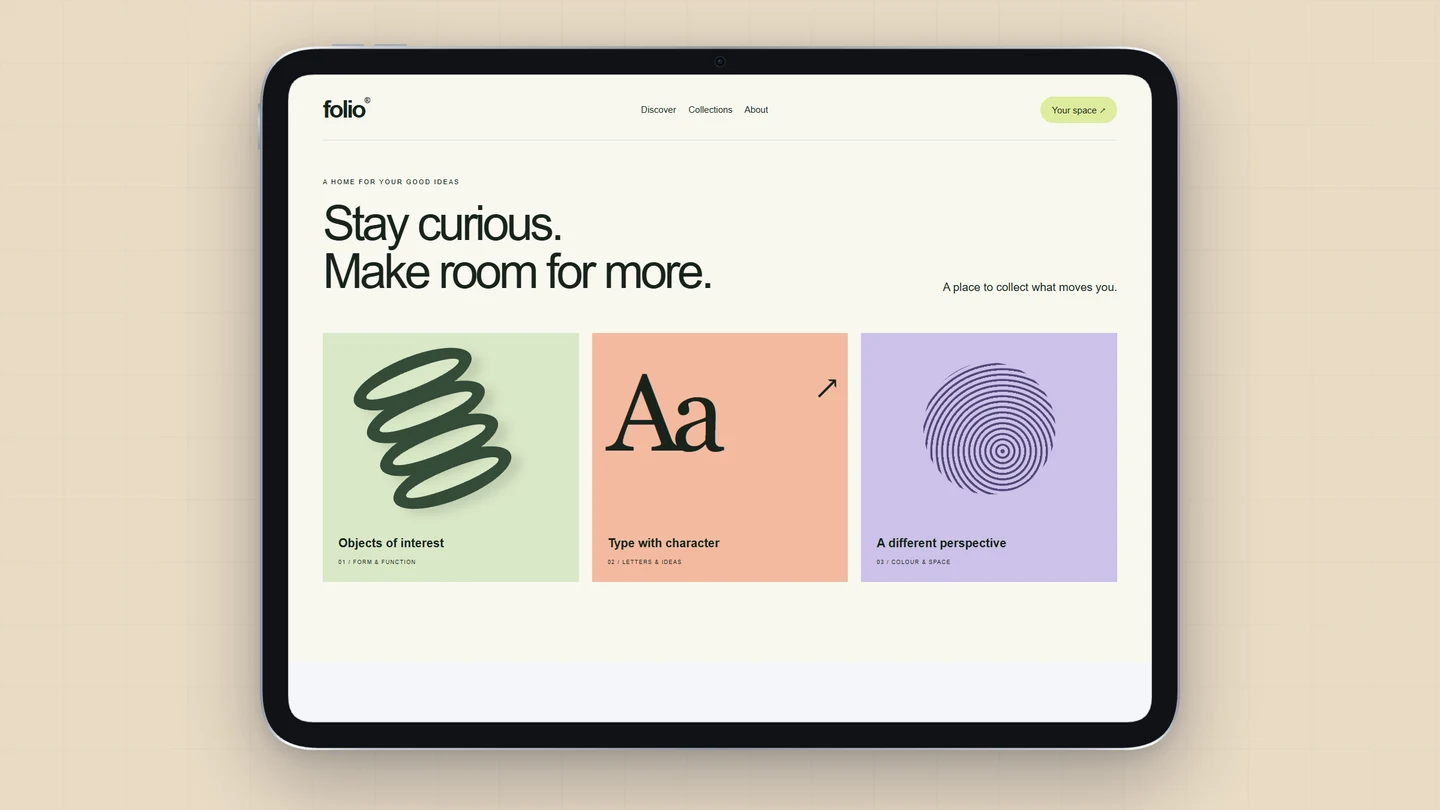
iPad mockups
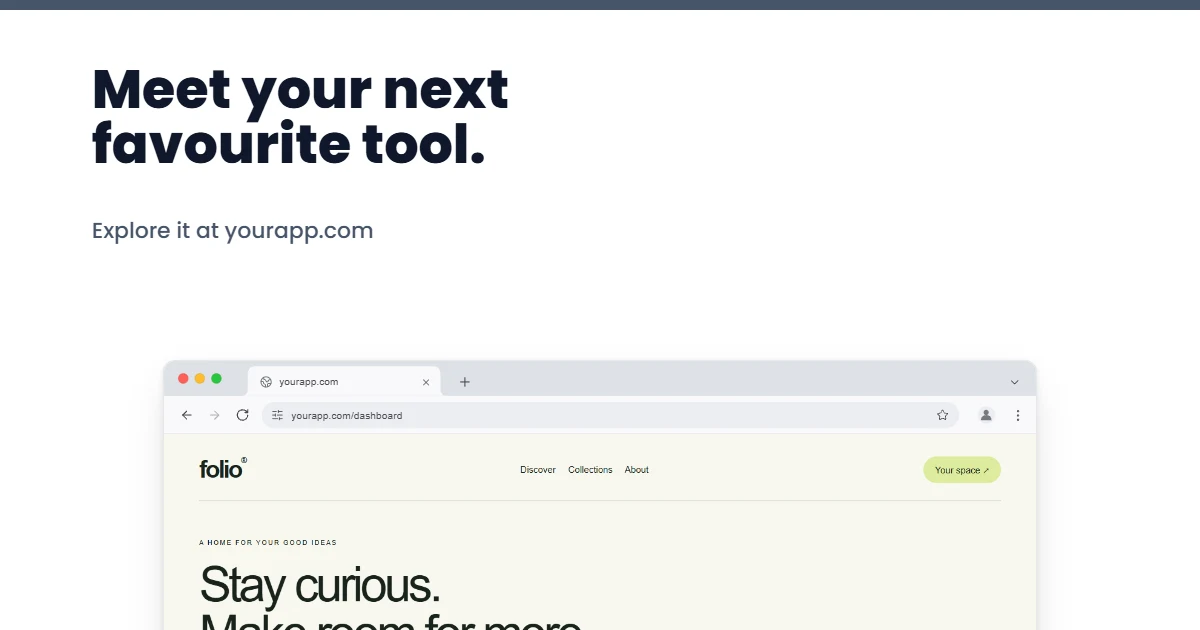
Open Graph images
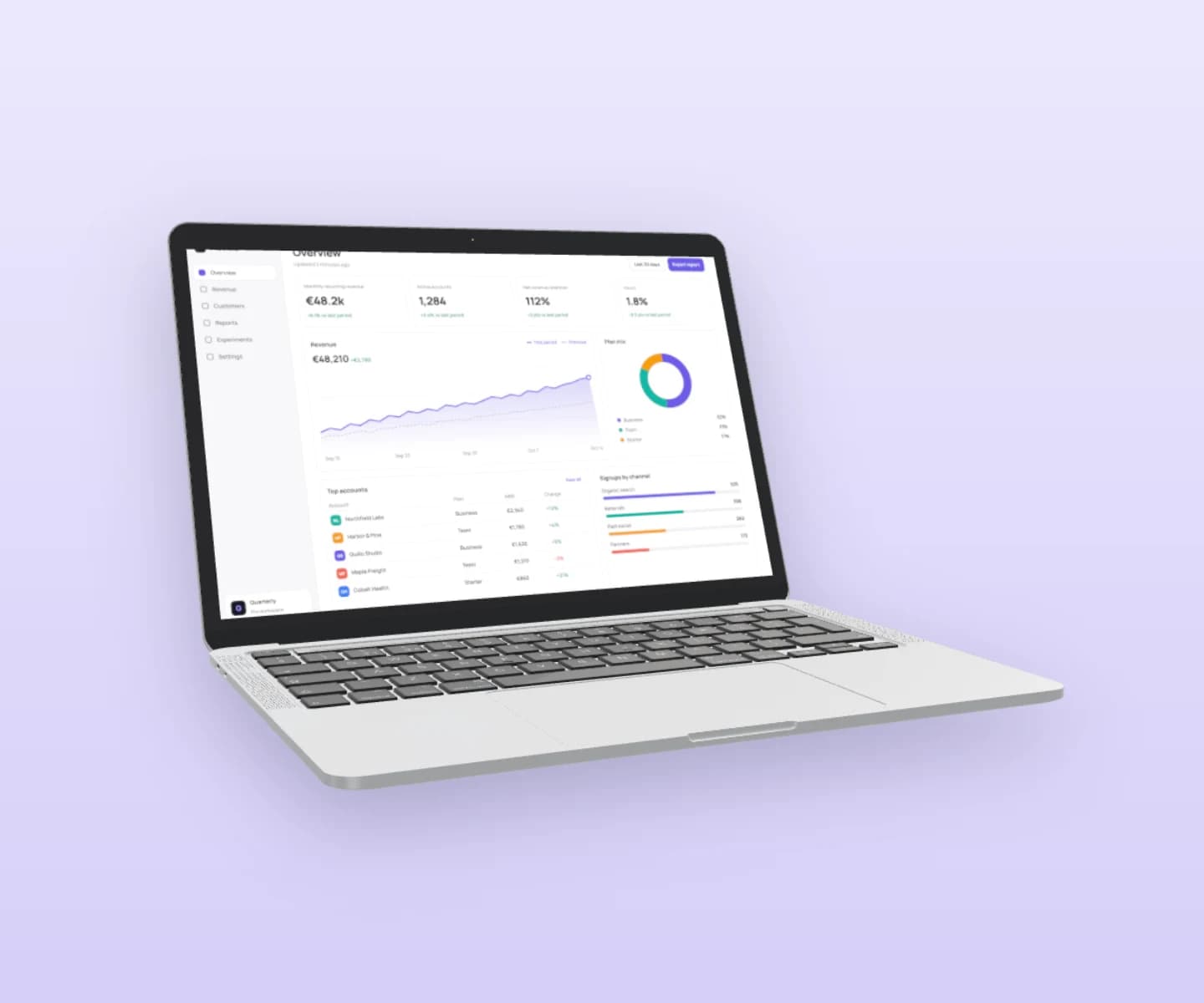
MacBook mockups
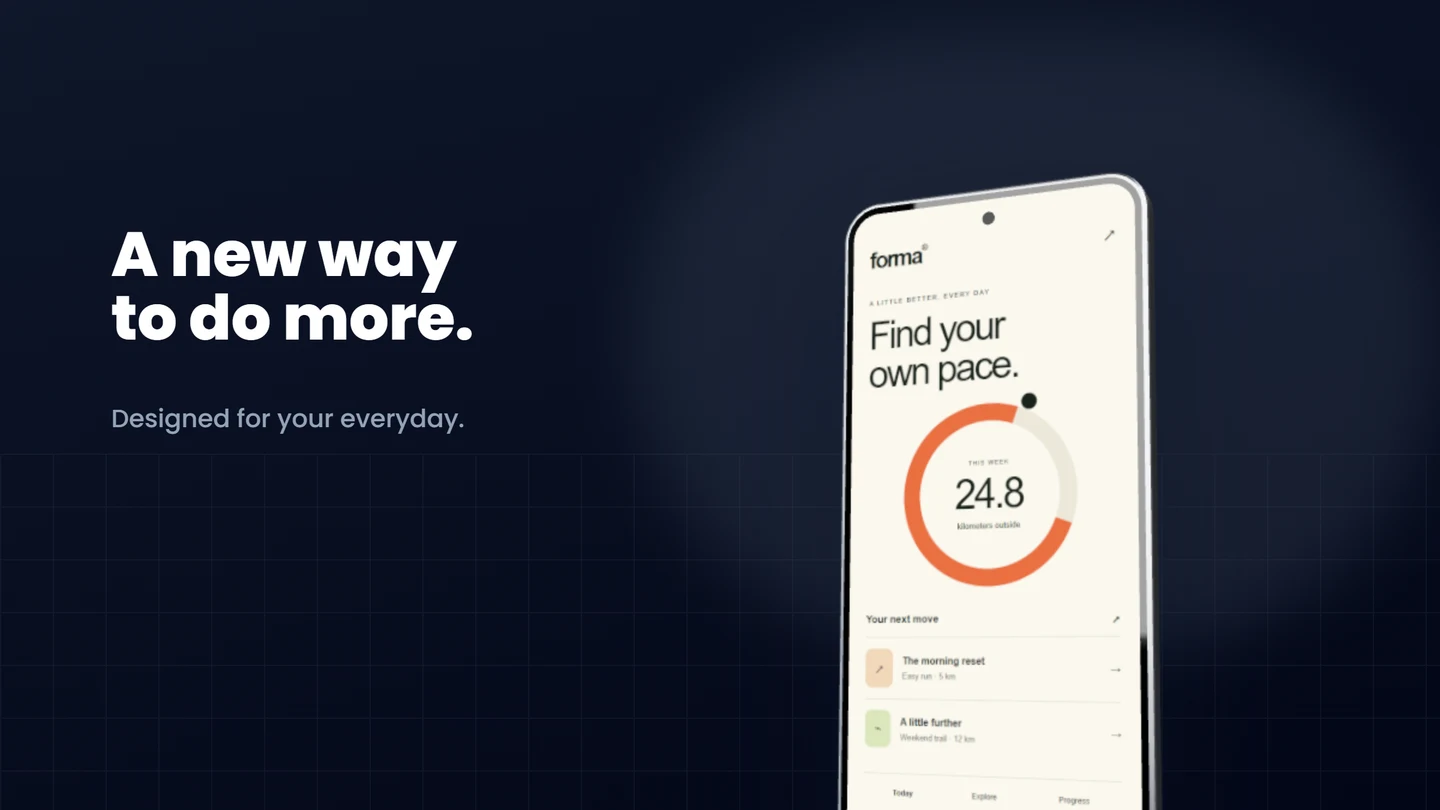
Android mockups
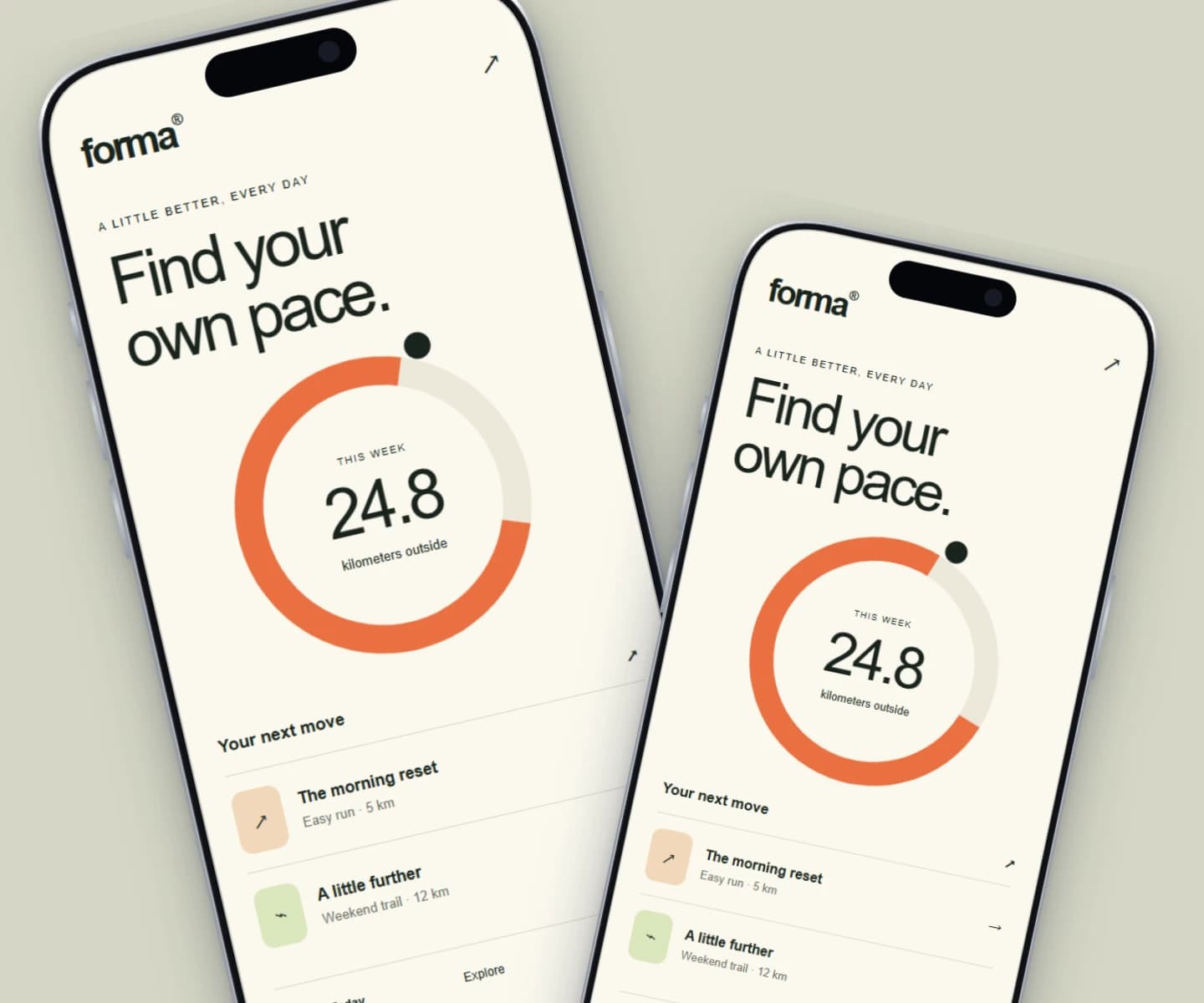
iPhone mockups
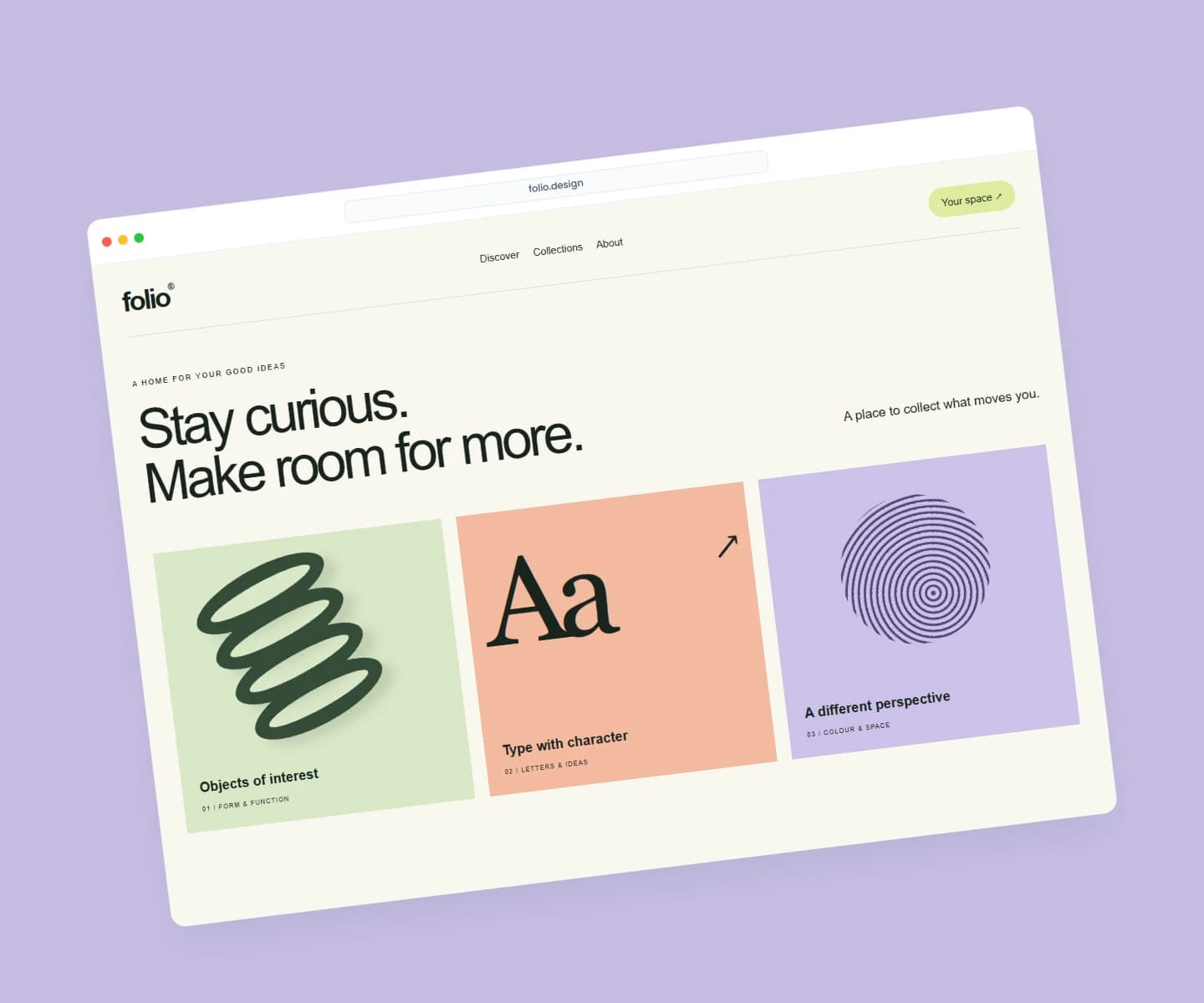
Website mockups
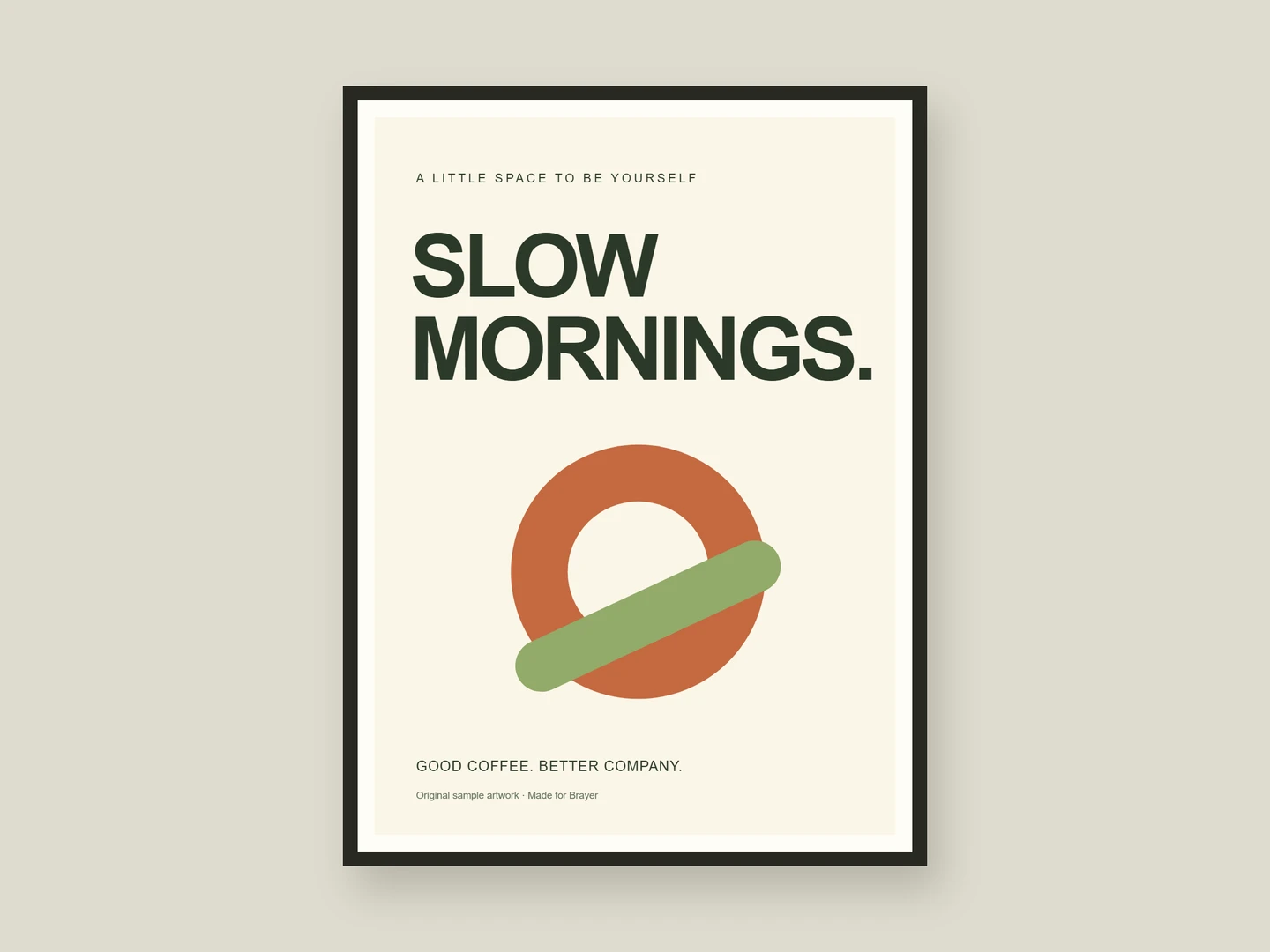
Poster mockups
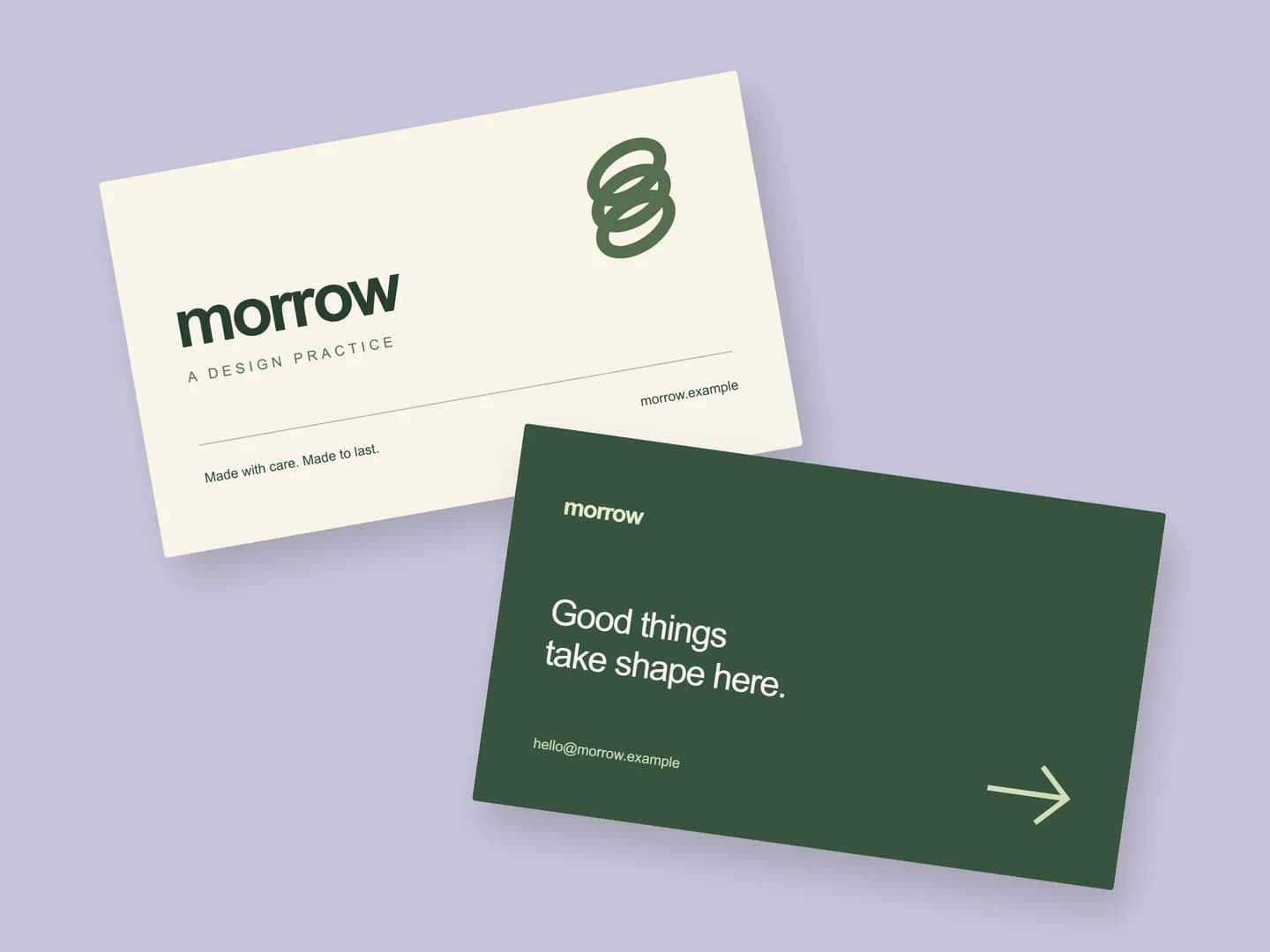
Business card mockups
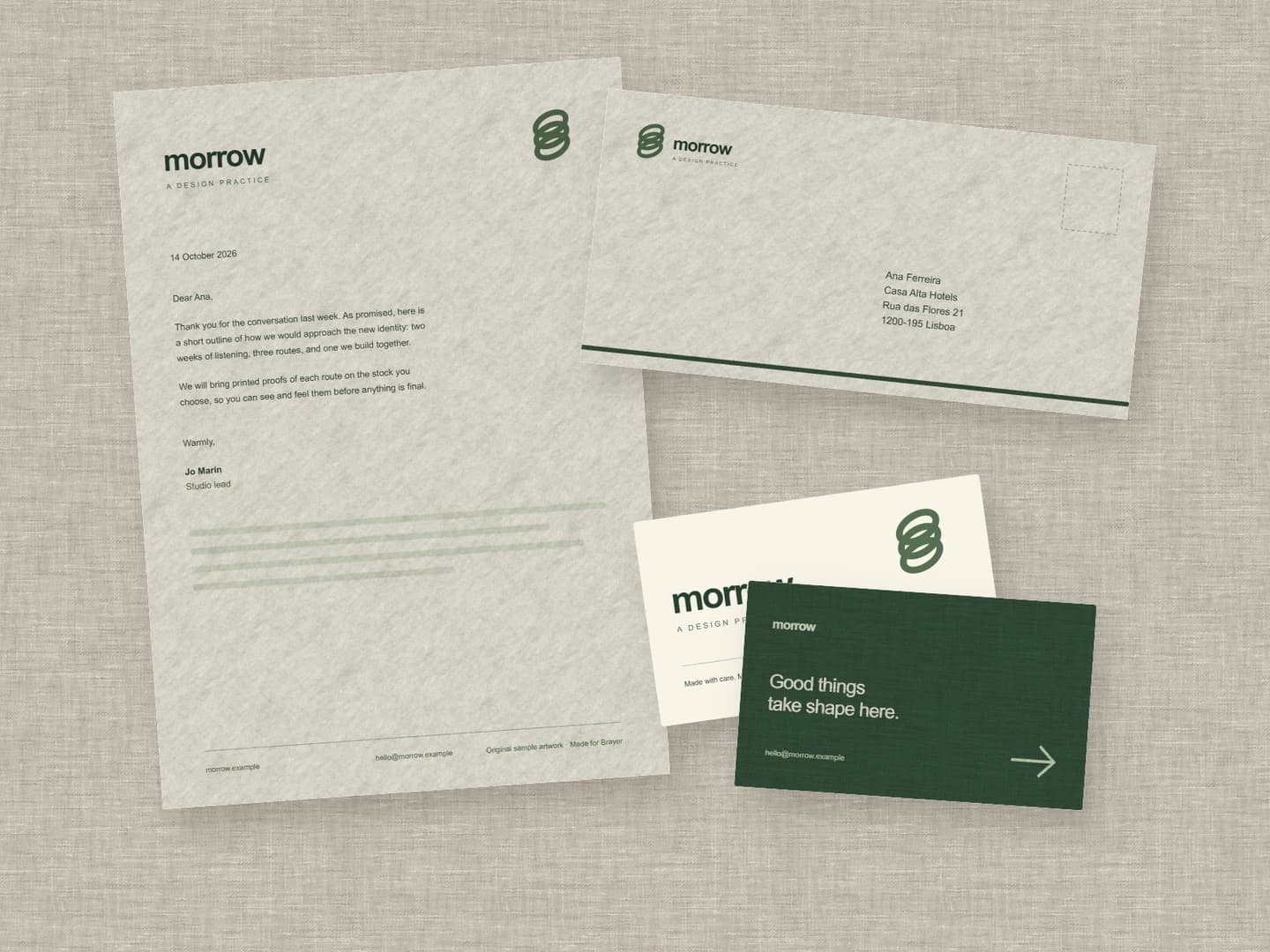
Stationery mockups
Each page opens a real scene you can edit.
All 20 mockup generatorsYour next visual starts here.
Make a macOS window mockupFree to start. Your files stay local by default.