Free MacBook Mockup Generator: Give your desktop app a frame that fits.
Show a website or desktop app in a MacBook frame. Choose a front-on layout for a clear view of the interface, or a 3D laptop with an adjustable lid and studio lighting for your next launch.
No sign-up. No watermark. Made for desktop browsers.
Made in Brayer. Open this scene to replace the sample artwork.
Choose your starting scene.
Real exports from Brayer. Each scene opens ready to edit.
Made in Brayer. Open the scene to replace the sample artwork.
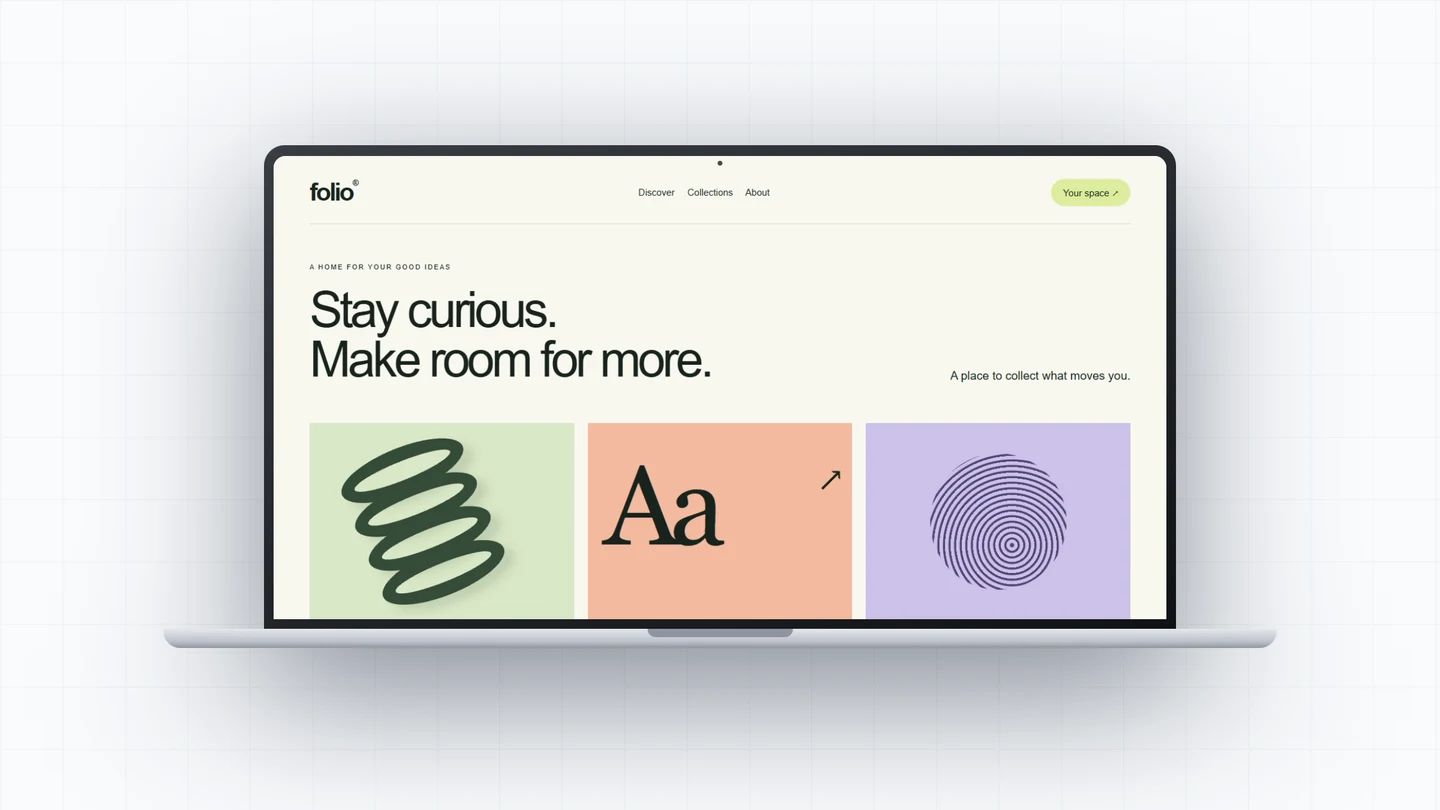
Flat MacBook: keep the interface clear
A front-on frame keeps navigation, small labels and charts easy to compare. Start here for a portfolio case study, a feature walkthrough or a product page where the screen does most of the explaining.
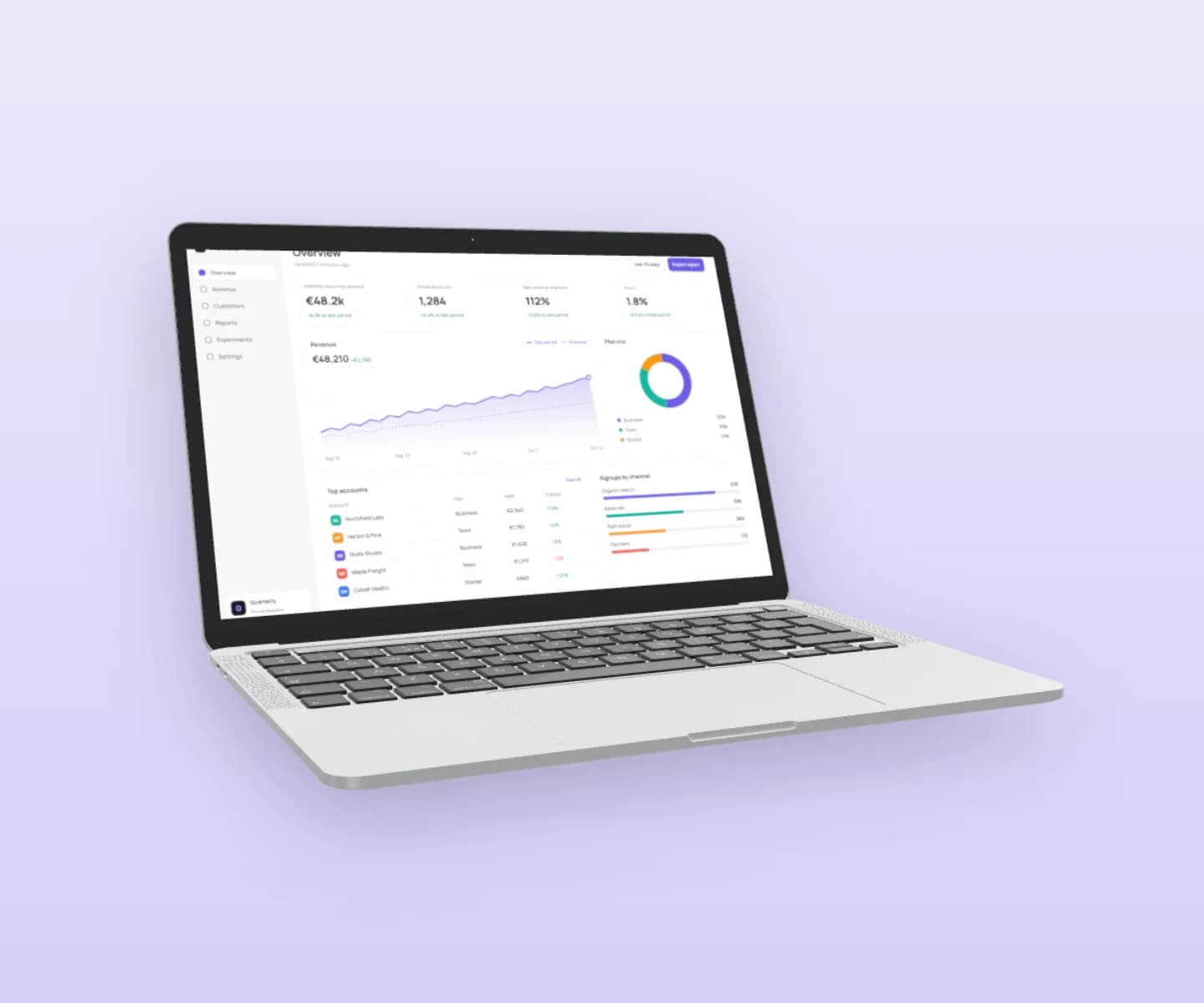
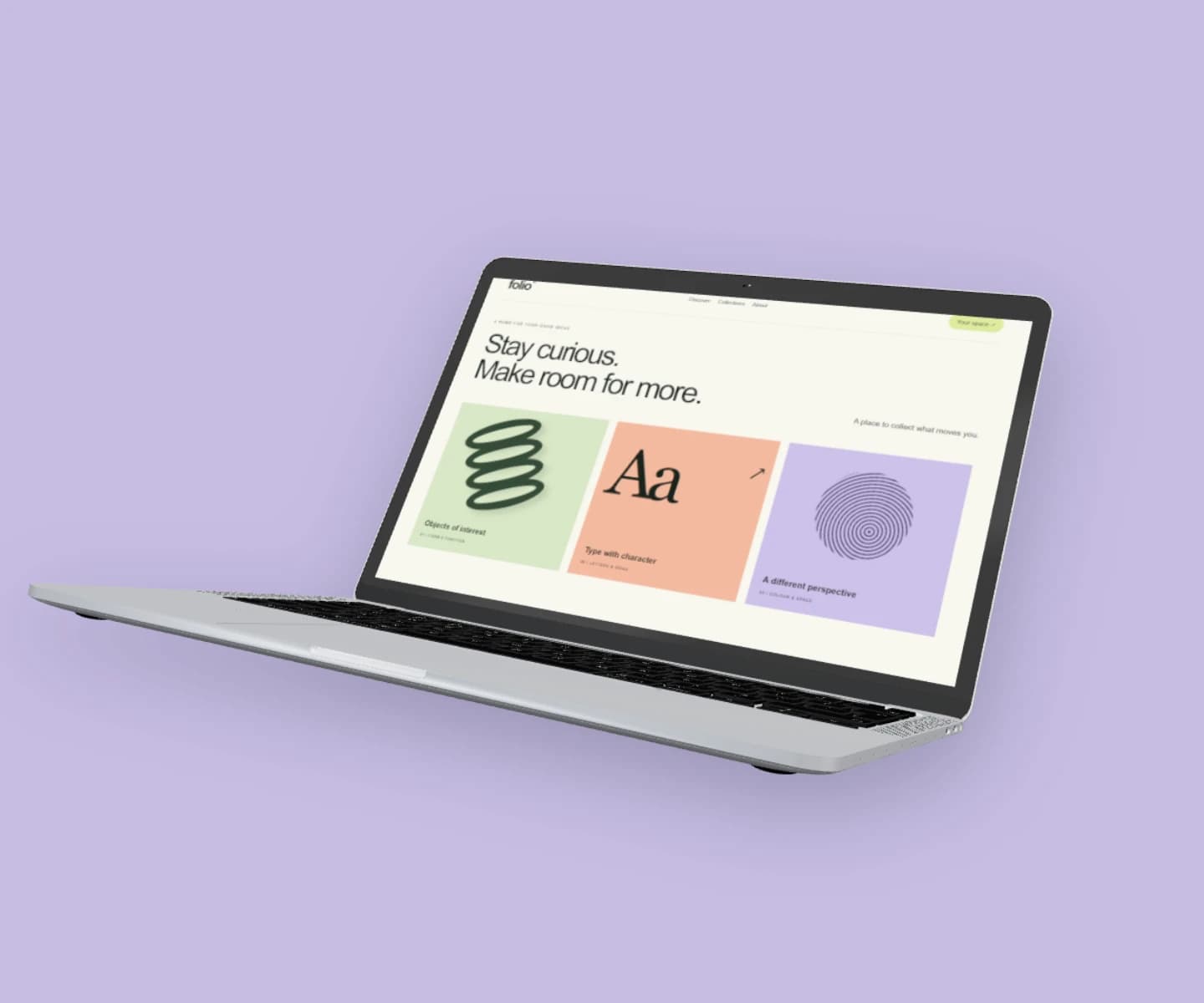
The silver laptop is lifted and turned on lilac. Adjust its pose, lid opening and lighting to give a launch graphic depth. Keep the lid open enough that your main feature remains visible.
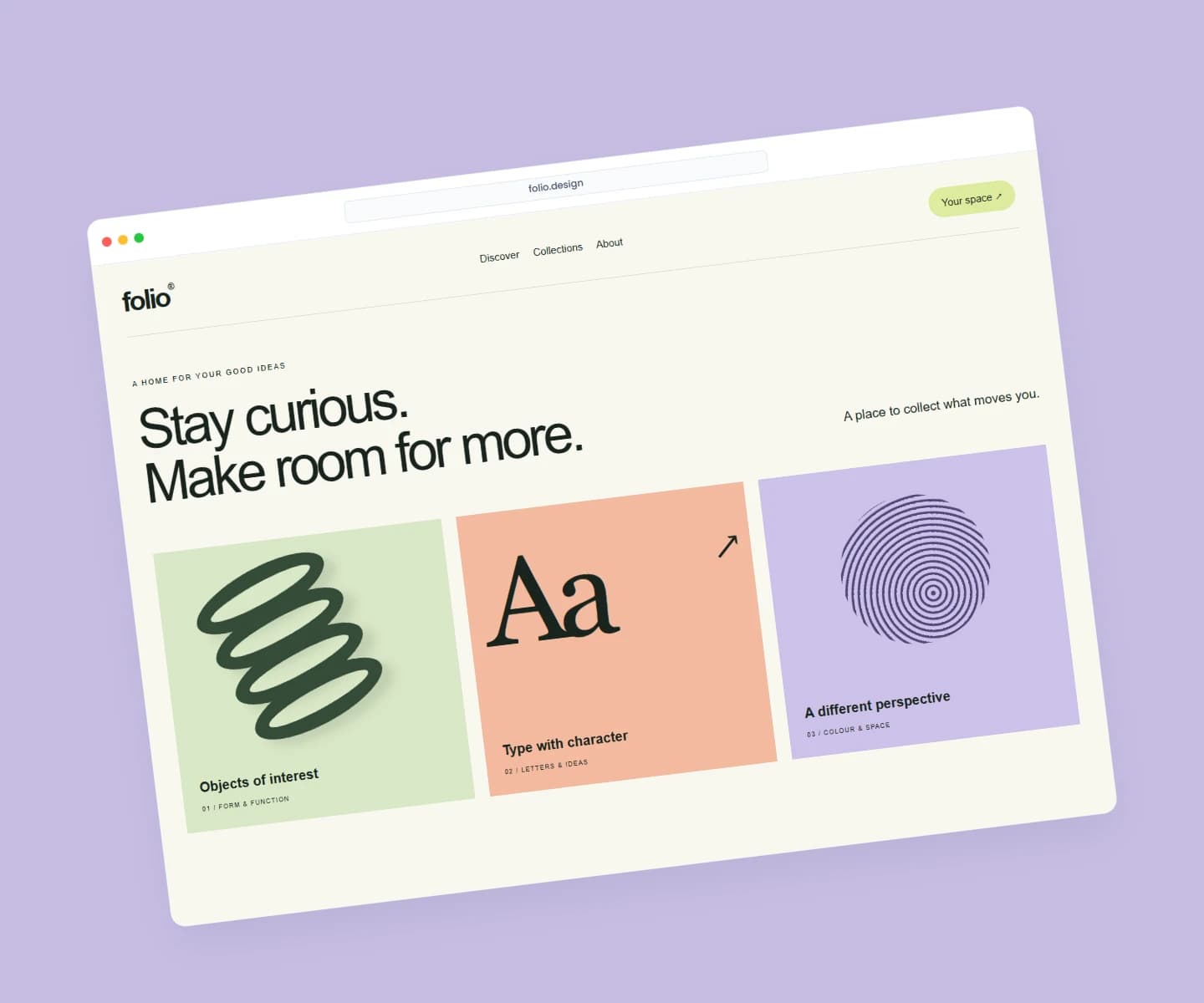
Take a screenshot of the part of your website or desktop app you want to show. Open either scene and replace the Folio sample with your image. A viewport screenshot is usually easier to read inside a laptop than a full scrolling page; Brayer does not capture websites from a URL.
02
Choose the pose and lighting
For the 3D scene, select the laptop and use the Laptop controls in Full editor: choose a Pose, adjust Tilt up / down, Turn left / right and Roll, then change Lid opening. Expand Lighting to choose a preset or aim the light; adjust Intensity, Softness and Fill light. These controls also appear in Quick mockup. The flat frame has no 3D lid or lighting controls.
03
Check the crop, then export
In Full editor, select the laptop and open Fit and frame. Fill covers the screen and may crop your image; Contain keeps the whole image visible and may leave space around it. Keep navigation and the main call to action inside the visible screen. Preview the result at its intended display size, then export a PNG or JPEG free up to 3,000 px on the long side.
Make the screenshot readable before making it dramatic
A steep angle can make a small screen hard to inspect. Start with the flat scene when readers need to compare interface details, or use a gentle turn and an open lid in 3D. Crop a long webpage to the feature you are presenting, then leave room around the laptop for a short headline. Match the canvas to the destination: a wide hero for your website, or a tighter crop for a social post. For a presentation without the laptop body, try the website mockup generator.
What is included for free?
Every device frame and starter scene, plus one free scene from each premium collection, custom canvas dimensions, local saving, and PNG or JPEG export up to 3,000 px on the long side, with no watermark or account. Pro adds larger exports up to 4×, WebP, transparent backgrounds, the premium collections, size batches, and optional cloud sync.
Brayer vs Rotato: Mockups and Motion ComparedCompare Brayer's browser mockups and short videos with Rotato's 3D animation workflow, purchase model and device tools. Includes an editable Brayer example.
Brayer vs Shots: Choosing a Mockup ToolCompare Brayer and Shots for screenshot mockups, launch graphics and animated content: a practical example, workflow differences and clear plan limits.
Connect AI: Design with Claude or ChatGPT via MCPAdd Brayer's MCP connector to Claude, ChatGPT, Claude Code or Cursor, turn on Connect AI in the studio, and let your AI app build mockups in your open tab.
GOOD TO KNOW
Before you create.
Are the flat and 3D MacBook scenes both free?
Yes. Both scenes, the device frames, and the 3D pose and lighting controls are included on Free. Export individual PNG or JPEG images without a watermark, up to 3,000 px on the long side. Pro adds larger exports, WebP, transparent backgrounds and batch exports.
Can I change the MacBook lid angle?
Yes, in the 3D MacBook scene. Select the laptop and adjust Lid opening from 0 to 100 percent in the Laptop controls. Tilt, turn and roll change the whole laptop's pose. The flat MacBook scene is a front-on frame and does not have an adjustable lid.
How do I avoid cutting off my screenshot?
Use a screenshot focused on one viewport or feature. In Fit and frame, choose Contain to preserve the whole image, or Fill to cover the screen and crop any excess. On the flat frame you can also choose Top, Center or Bottom alignment. Check the exported image at the size people will actually see it.
Can I animate the laptop opening?
You can choose a fixed lid opening and animate the laptop's pose with motion presets or keyframes. The lid angle itself is not a keyframe field. Preview the movement for free; short MP4 and WebM video exports require Pro.
Find your next mockup.
Starting points for product launches, portfolios and client work.