FROM SCREENSHOT TO LAUNCH
Animate mockups with presets and editable keyframes.
Short answer
Open a design in Brayer and choose Motion. Apply Product turn, Camera push, Text entrance or Screen scroll, adjust it while it plays, and edit any part by hand as keyframes. Editing and previewing are free; Pro exports MP4 and WebM videos of 1 to 30 seconds up to 1080p at 24 or 30 fps, and App Store app previews at Apple's exact sizes, in your browser.
Keep the artwork you already made. Motion belongs to the page, so the device, headline, product label and layout stay editable alongside the animation.
By Álex Coca · Published · Updated
Prepare one page and open Motion
Start with a phone, MacBook or product mockup, and replace the sample artwork. Keep text large enough to read at the final size. The Motion button in the studio opens a preview and the page’s timeline.
Motion exports the current page and the artwork variant you are viewing. Still-image exports keep the original layout. A multi-page project can have different motion on each page; the first release exports one page per video.
Choose a preset, then make it yours
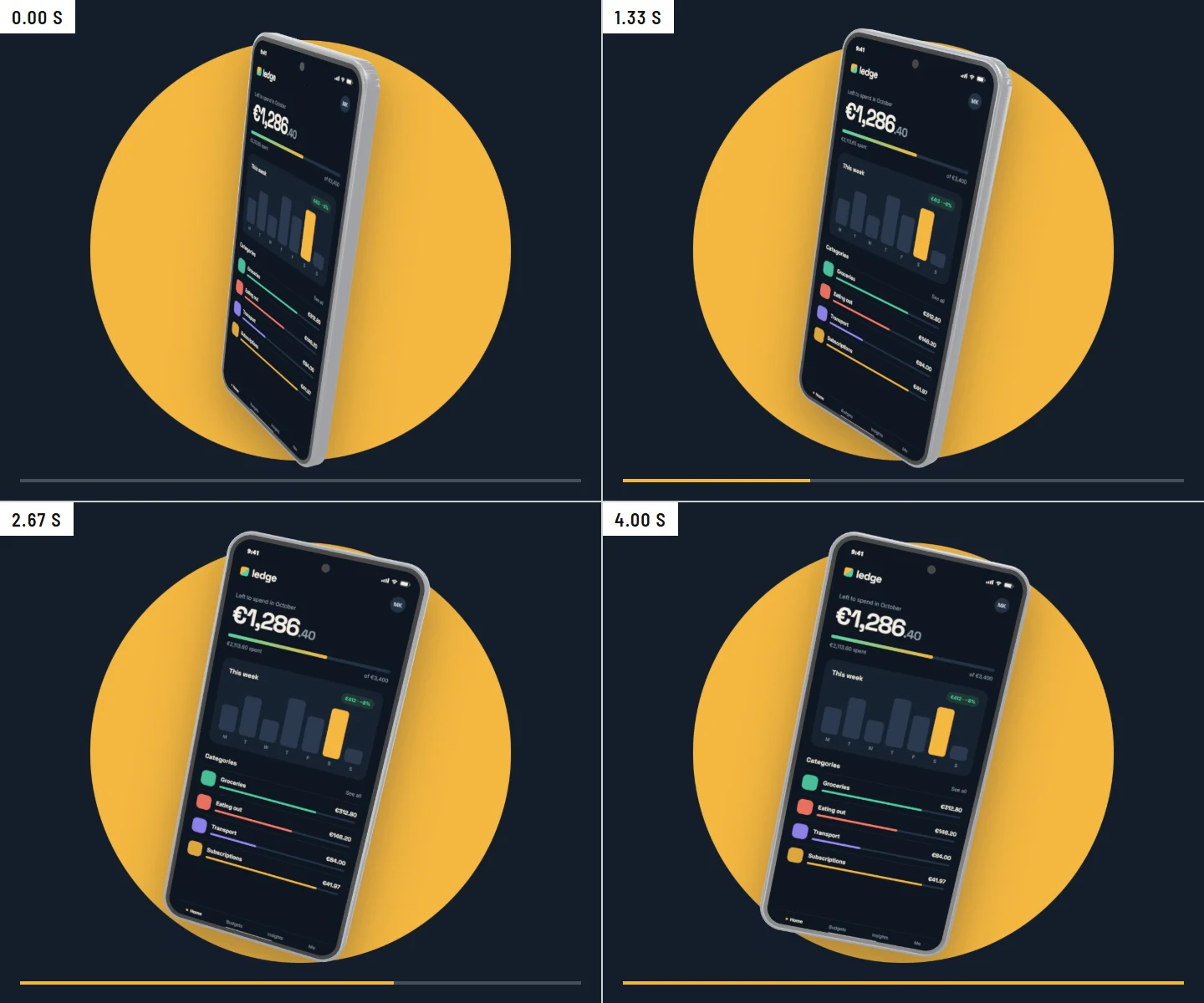
Product turn changes the pose of a 3D phone, laptop or product. Camera push moves the composition closer or farther away. Text entrance reveals text and badges in sequence. Screen scroll pans a tall screenshot inside a phone, tablet or browser frame, so a long page or feed moves through the screen; set that frame's Fit to Fill, without a crop, in the inspector first.
A preset updates live while you adjust its intensity, direction, duration and loop, so you can watch each change before keeping it. Choose a duration from 1 to 30 seconds and 24 or 30 frames per second. With the loop on, the preset ends where it starts. A video file contains one cycle; whether it repeats after download is controlled by the video player. Undo and Redo work while Motion is open.
Edit the timeline and check the whole movement
Select a layer, move the playhead and add a keyframe. Change position, size, rotation or opacity; text also has size, supported 3D layers have tilt, turn, roll and size, and a screenshot set to Fill has Scroll. A keyframe records only the values you change, so the rest of the layer keeps following the design. The preview shows the exact timestamp you selected. Move a keyframe with its time field, choose Smooth, Ease out or Linear easing, or remove it.
Scrub the beginning, middle and end. Check that a turning product keeps the label visible, that a camera push does not crop important copy, that a scrolling screen stops on the part you want seen, and that text has time to be read. A hand edit turns a preset into ordinary keyframes, so you can adjust its timing rather than starting from scratch.
Scroll is also a setting in the inspector, from 0 to 100%, for a cover-fitted screenshot in every frame except the 3D MacBook. It chooses which part of a tall screenshot a still image shows.
Download a video or App Store preview with Pro
Choose 720p or 1080p and inspect the exact pixel dimensions shown beside Export video. The composition keeps its aspect ratio within an HD or Full HD frame. MP4 and WebM downloads are included in Brayer Pro; creating, saving and previewing motion stay free.
For App Store Connect, choose an app preview size instead: iPhone 886 × 1920 or 1920 × 886, iPhone 5.5″ 1080 × 1920 or 1920 × 1080, iPhone 4.7″ 750 × 1334 or 1334 × 750, iPad 1200 × 1600 or 1600 × 1200, or Mac 1920 × 1080. Brayer exports an H.264 MP4 of 15 to 30 seconds at up to 30 fps, with the silent stereo audio track App Store Connect expects. If the page’s ratio differs from the preview’s, the dialog says so before rendering: the page is fitted whole with bands in its own colour, or one click matches the page to the preview size.
Export renders and encodes each frame locally. Keep the tab open until the file downloads; progress and cancellation are available. Complex 3D scenes and longer videos take more time than short, flat compositions. If your browser cannot encode the chosen format, try the other format or 720p. Videos are opaque and carry no sound, apart from the silent track in App Store previews; screen recordings and transparent video are not supported.
Let your AI app edit the same motion
With Connect AI, an assistant can apply presets, edit keyframes and preview a specific timestamp. Video export returns a job identifier; the assistant can check progress or cancel while your studio renders. The same Pro requirement applies, and the finished file downloads in the browser.
Check the source requirements
Product features and submission requirements can change. These official pages support the comparison or specifications above.
Keep building your launch set
- How to Make App Store Screenshots
- App Store Screenshot Sizes & Checker (2026)
- Localize App Store Screenshots in Brayer
- Google Play Screenshots and Feature Graphic Guide
- Connect AI: Design with Claude or ChatGPT via MCP
- Brayer vs Shots: Choosing a Mockup Tool
- Brayer vs Rotato: Mockups and Motion Compared
Android mockups · MacBook mockups · Can mockups · Café branding mockups
Try the example