FROM SCREENSHOT TO LAUNCH
Make Google Play screenshots and a feature graphic that explain your app.
Short answer
Google Play needs at least two screenshots across your device types, as JPEG or 24-bit PNG with no alpha, within Google's general limits of 320 to 3,840 px with the long side no more than twice the short side (tablet and Chromebook screenshots allow up to 7,680 px), plus a 1024 × 500 feature graphic (checked 15 October 2026). For phones, four or more 1080 × 1920 portrait or 1920 × 1080 landscape screenshots meet Google's recommendation, and both sizes export free in Brayer.
A phone screenshot explains the experience inside your app. A feature graphic gives the listing a wider visual identity. Build them as separate compositions with the same colours and typography.
By Álex Coca · Published · Updated
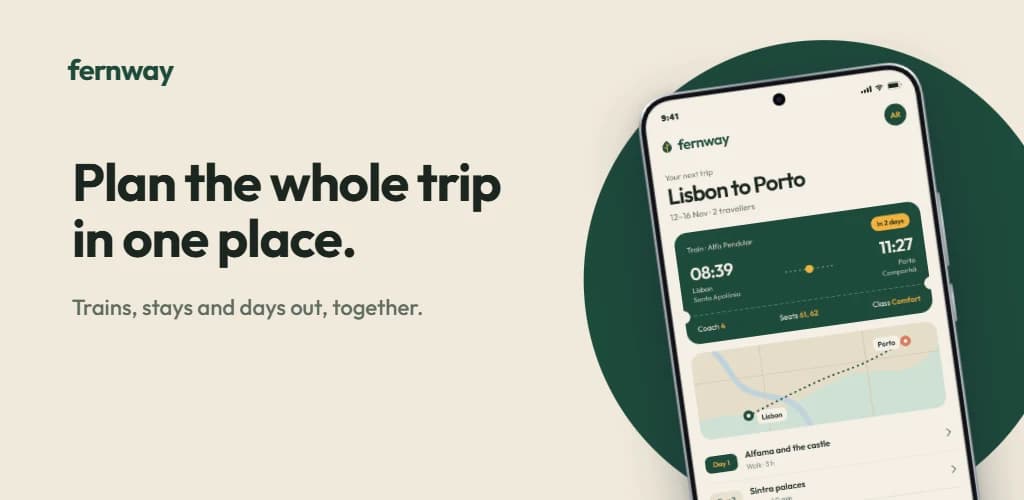
Choose screens that show the actual app
For Forma, use one screen to show the next planned run and another to show weekly progress. Give each composition a short benefit-led heading, then make the screenshot large enough to support the claim. Avoid placeholder features that are not present in the app people will download.
Start with Android captures, sample data and a consistent appearance. An iPhone frame around an Android release adds avoidable confusion. Brayer includes flat Android, Pixel and 3D Android options for different presentation styles.
Use the phone preset for the first page
Open the Play Store phone scene, replace the sample image, and adjust the headline in Full editor. Its 1080 × 1920 canvas is ready for a portrait composition. Duplicate the page for another feature; change the image and copy while keeping the visual system consistent.
Google's general screenshot limits are 320 to 3840 pixels, with the longest side no more than twice the shortest. It requires at least two screenshots across supported device types; additional device-specific rules apply. For apps seeking screenshot-based recommendations, Google asks for at least four 1080-pixel-minimum images in 9:16 or 16:9. Check the full guidance for your supported devices.
Useful starting sizes, checked against Google Play's guidance on 15 October 2026.
| Asset | Brayer starting size | Check before upload |
|---|---|---|
| Phone screenshot | 1080 × 1920 px | JPEG or 24-bit PNG without alpha |
| Landscape screenshot | 1920 × 1080 px | Keep the actual app experience legible |
| Feature graphic | 1024 × 500 px | Prepare a separate wide composition |
Treat the feature graphic as its own layout
Choose the Play feature graphic scene for the 1024 × 500 image. Recompose the idea horizontally: keep the product identity readable and avoid squeezing a portrait screenshot until it becomes a narrow strip. A short message and one recognisable app detail are a useful starting point.
For a website launch, you can also use the 3D Android scene at a wider canvas size. Keep that marketing image separate from the listing set so later changes do not accidentally alter the assets you submitted.
Review the downloaded files
Download individual JPEG or PNG images for free. Use JPEG when you need an output with no alpha channel. Inspect the files for text clipping and confirm their dimensions. Pro adds ZIP exports for a multi-page set and image replacement batches when the surrounding layout stays the same.
Save the editable project alongside the final exports. Brayer does not publish to Google Play or validate all listing rules; use the official requirements and Play Console's checks before submission.
Check the source requirements
Product features and submission requirements can change. These official pages support the comparison or specifications above.
Keep building your launch set
- Animate Mockups with Presets and Keyframes
- How to Make App Store Screenshots
- App Store Screenshot Sizes & Checker (2026)
- Localize App Store Screenshots in Brayer
- Connect AI: Design with Claude or ChatGPT via MCP
- Brayer vs Shots: Choosing a Mockup Tool
- Brayer vs Rotato: Mockups and Motion Compared