FROM SCREENSHOT TO LAUNCH
Localize App Store screenshots: one design, three languages.
Short answer
Use variants to share a screenshot's layout while changing its headline, supporting copy and app capture for each language. In Brayer's three-language scene, Original is English; Español and Deutsch hold the translated content. Review all three together, then export the current version or a ZIP containing every variant.
This walkthrough starts with the fictional Forma app and finishes with three real 1320 × 2868 JPEG exports. You can open the same editable scene, inspect each full-size file and replace the sample content with your own app.
By Álex Coca · Published · Updated
Open the example and choose your output size
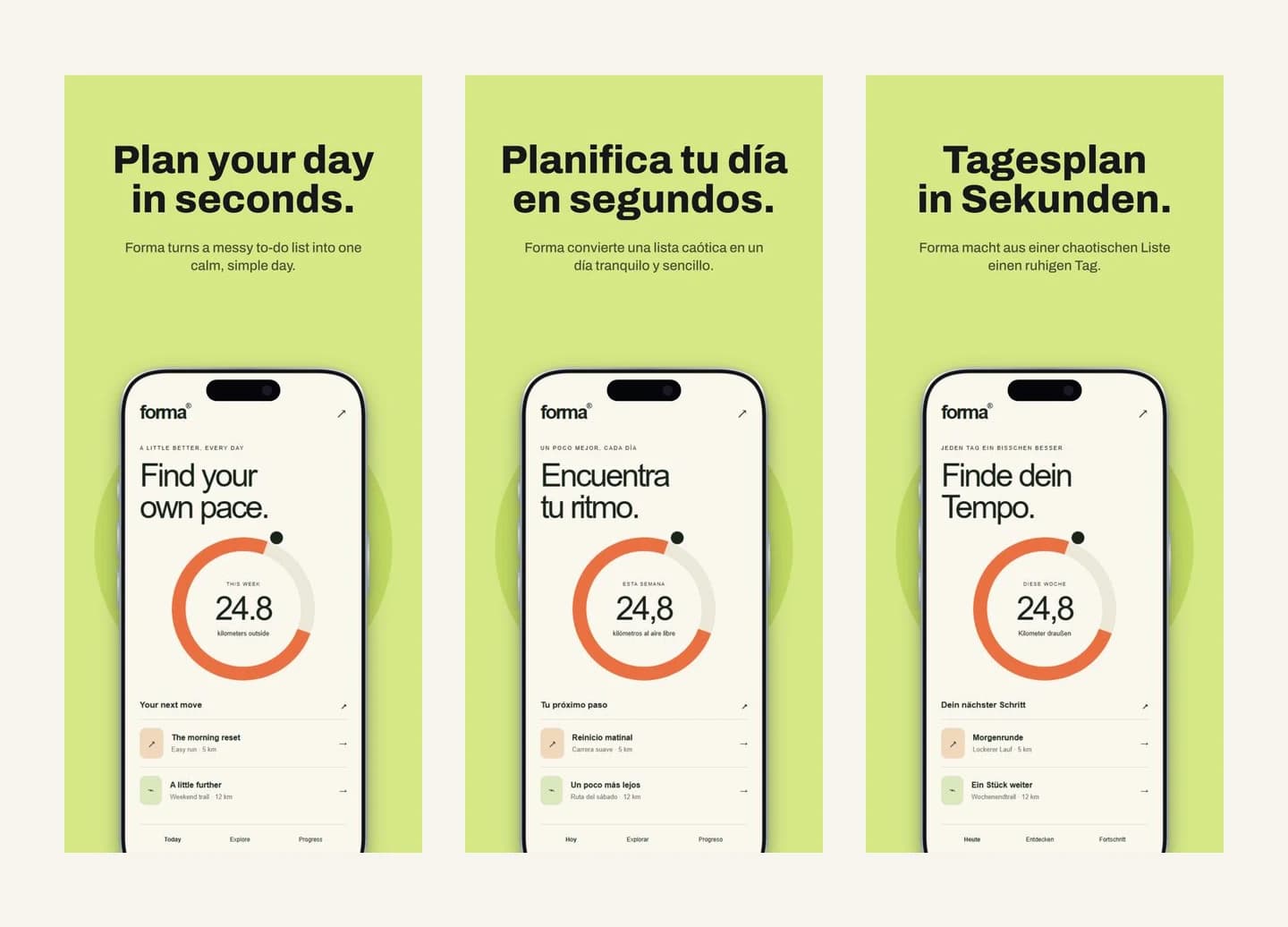
Open App Store · three languages. Above the canvas, the Variants bar offers Original, Español and Deutsch. Switch between them: the headline, supporting line and phone screen change, while the phone's position, type sizes and background stay consistent. This is a prepared example; Brayer does not translate your app or copy automatically.
The scene starts at 1320 × 2868 and belongs to the Pro App launch collection. You can open and edit it on Free, but exporting its premium layers requires Pro. For a free workflow, start with App Store iPhone, use the Variant button beside the page controls to add languages, and export them one at a time.
Choose the device size before you localize. The examples below retain the scene's 1320 × 2868 size. If you need 1206 × 2622, open Sizes, select iPhone 6.3″ under Apple, leave Layout on Fit, switch off Keep original and add a page, then click Resize current page. The shared page size applies to every language. Use the App Store screenshot sizes guide to match the slots your app needs.
Change the message and the screen together
Pick Original and edit the English headline and supporting line in Full editor. Select the iPhone and replace its screen with a capture of your app in English. Then pick Español and repeat with your Spanish copy and capture; do the same for Deutsch. Content edits belong to the selected variant. Moving a layer, changing its size or choosing a different font changes the shared design, so check the other languages after any layout edit.
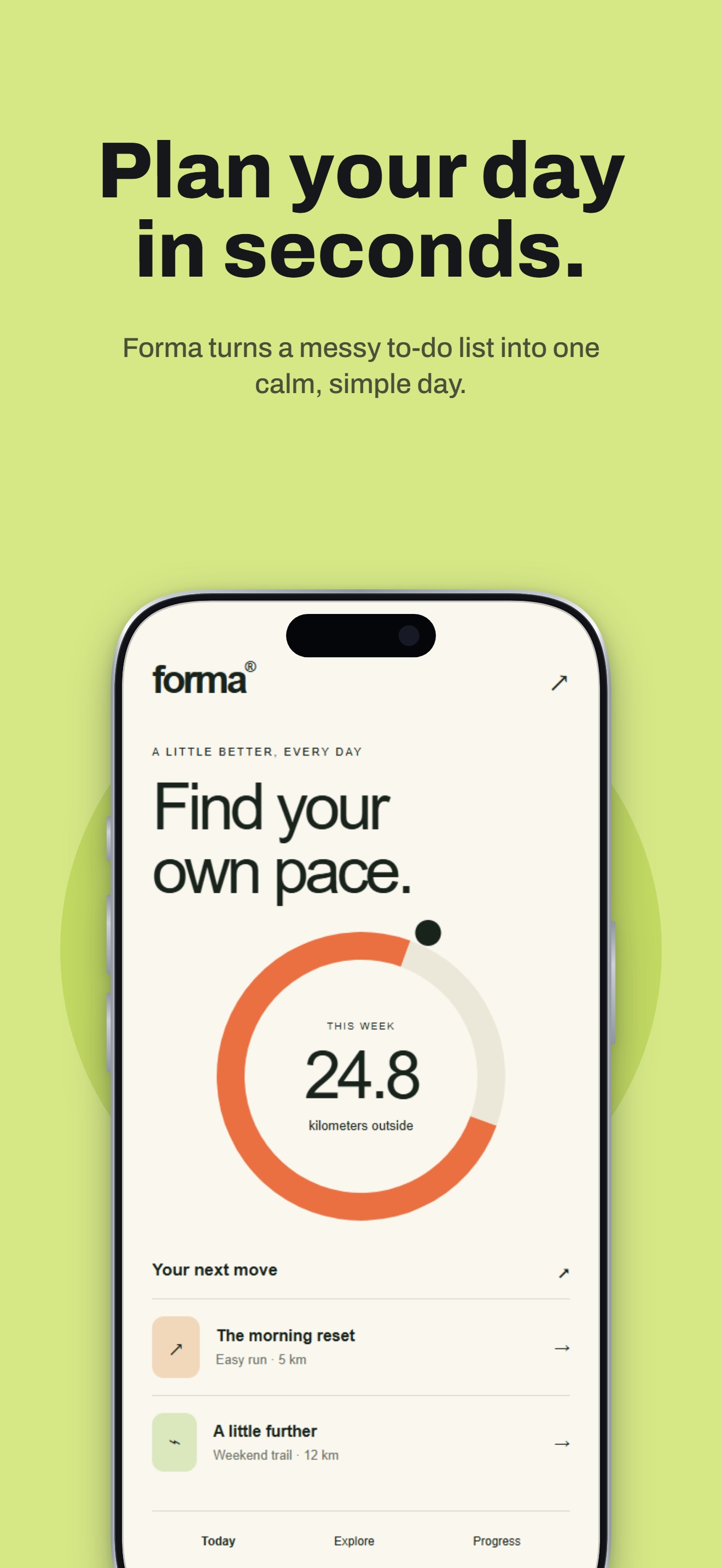
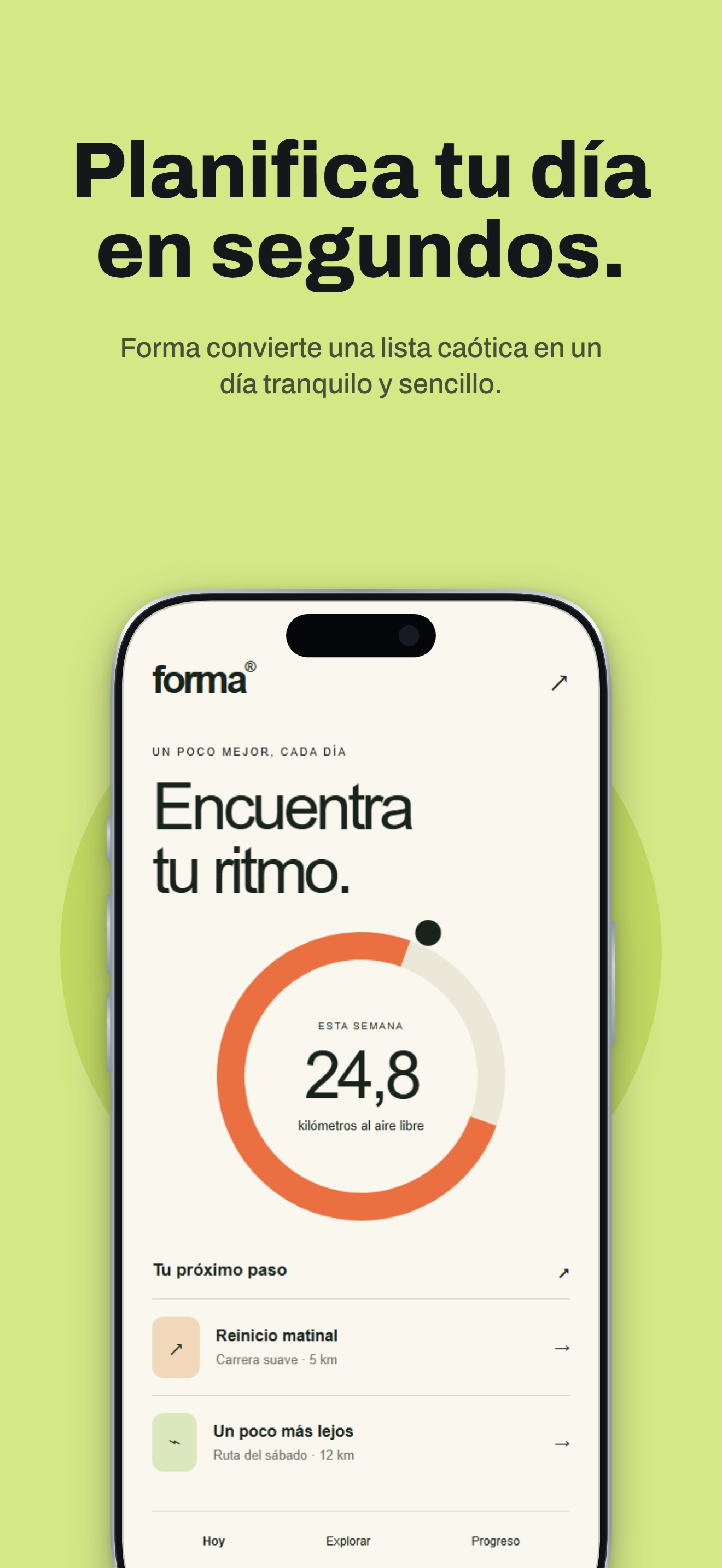
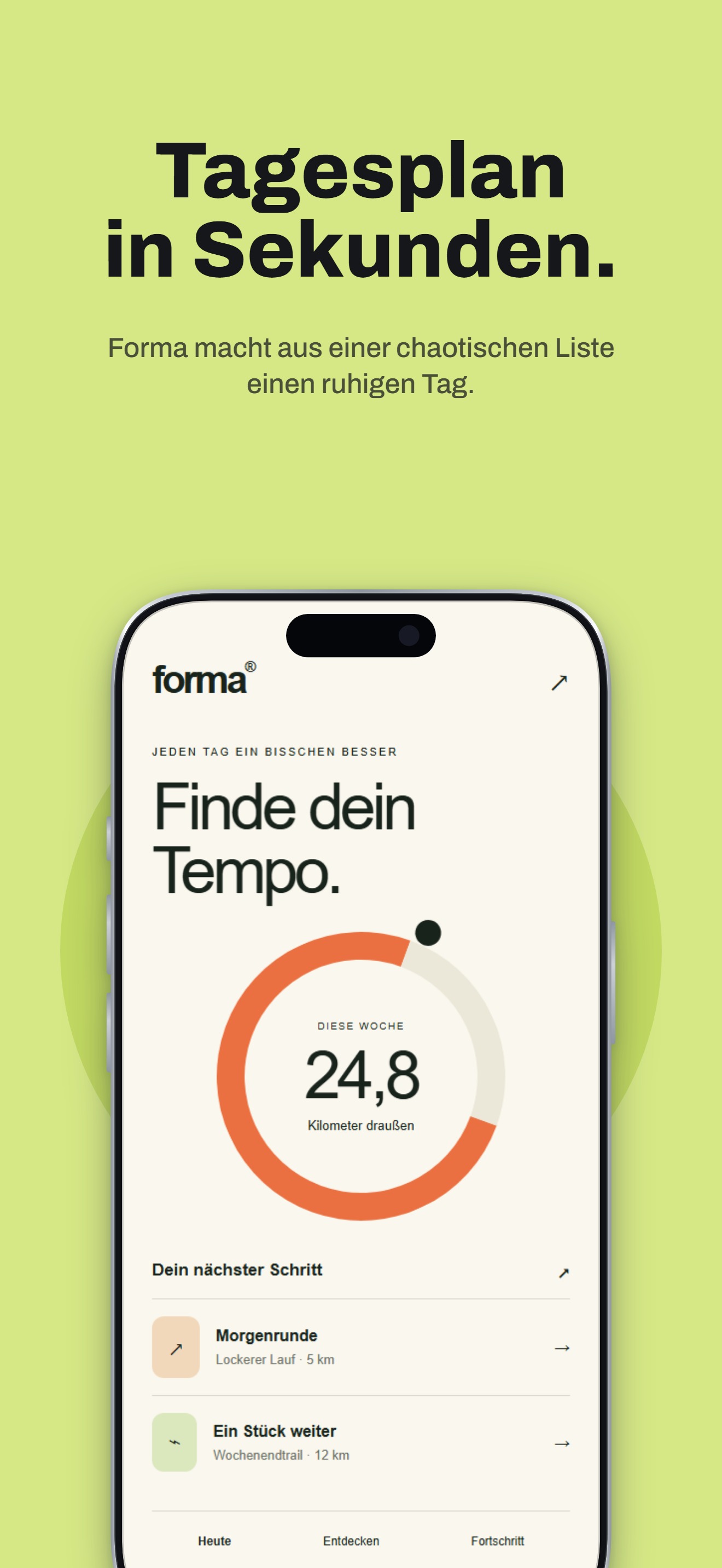
Our English headline is ‘Plan your day / in seconds.’ Spanish uses ‘Planifica tu día / en segundos.’ German uses the shorter ‘Tagesplan / in Sekunden.’ The slash marks the deliberate line break. These are three ways to express the same promise in the same space; they are not a word-for-word translation exercise.
The phone's interface changes language too. Use captures from the same app version and the same screen, with comparable sample data. Check dates, decimal separators, currency, button labels and any text baked into images. A translated headline above an English interface leaves the job half done.
The actual copy and screenshot overrides in the launch-languages scene. Layout, typography and device geometry are shared.
| Version in Brayer | Headline | Supporting line |
|---|---|---|
| Original · English | Plan your day / in seconds. | Forma turns a messy to-do list into one calm, simple day. |
| Español · Spanish | Planifica tu día / en segundos. | Forma convierte una lista caótica en un día tranquilo y sencillo. |
| Deutsch · German | Tagesplan / in Sekunden. | Forma macht aus einer chaotischen Liste einen ruhigen Tag. |
Compare the three actual exports
These images were exported from Brayer's current-page JPEG workflow at 1320 × 2868, with quality set to 92%. The page previews are smaller WebP copies for faster loading; each download is the original JPEG. Forma is fictional sample artwork, so replace both the copy and the app screens before publishing your own listing.
Open Manage and compare above the canvas to see the versions side by side and inspect which fields differ. In this example, Spanish uses more horizontal space in the headline; German keeps the first line short. Review the longest headline and supporting line at full size, then at a small preview size. Shorten a translation or introduce a sensible line break before shrinking the shared type for every language.
Export one language or the complete set
For one language, select its variant above the canvas, open Export and leave Export on Current page. Choose JPEG, select Exact pixels and confirm Width 1320 and Height 2868 for this scene. Leave Quality at 92% and click Download. Repeat with the other two variants. JPEG always has an opaque background; Apple does not accept screenshot alpha channels or transparency.
With Pro, choose All variants · ZIP instead. Keep Include the original switched on, or the English version will be missing. Choose JPEG and click Download ZIP. Brayer creates one folder per variant and one file per page; every file uses that page's exact size. This one-page design produces three files. If you resized the page to 1206 × 2622 earlier, all three use that size instead.
On a free scene, Free exports the current version as PNG or JPEG up to 3,000 px on the long side, with no account or watermark. The All variants ZIP is Pro, and switching to Current page does not remove the Pro requirement from this walkthrough's App launch scene. Save a project backup to keep the editable layout and all language overrides for the next release.
Upload each language to the matching localization
Keep the exports in clearly named language folders and verify dimensions, crop and spelling before uploading. In App Store Connect, select or add the language in the version page's language menu, then supply that localization's screenshots. Apple initially copies screenshots from the primary language when a localization is added, so confirm that the intended translated files replaced those defaults. App Store metadata languages are separate from the languages supported by your app binary.
Have a speaker of each target language review both the promotional copy and the interface. Check the store preview as well as the full-size file, and keep the source captures alongside the Brayer project so the next app update can reuse the same composition. For the rest of the sequence, return to planning an App Store screenshot set.
Check the source requirements
Product features and submission requirements can change. These official pages support the comparison or specifications above.
Keep building your launch set
- Animate Mockups with Presets and Keyframes
- How to Make App Store Screenshots
- App Store Screenshot Sizes & Checker (2026)
- Google Play Screenshots and Feature Graphic Guide
- Connect AI: Design with Claude or ChatGPT via MCP
- Brayer vs Shots: Choosing a Mockup Tool
- Brayer vs Rotato: Mockups and Motion Compared
Free to edit. Pro required to export this example. Or start with the free App Store iPhone scene.